
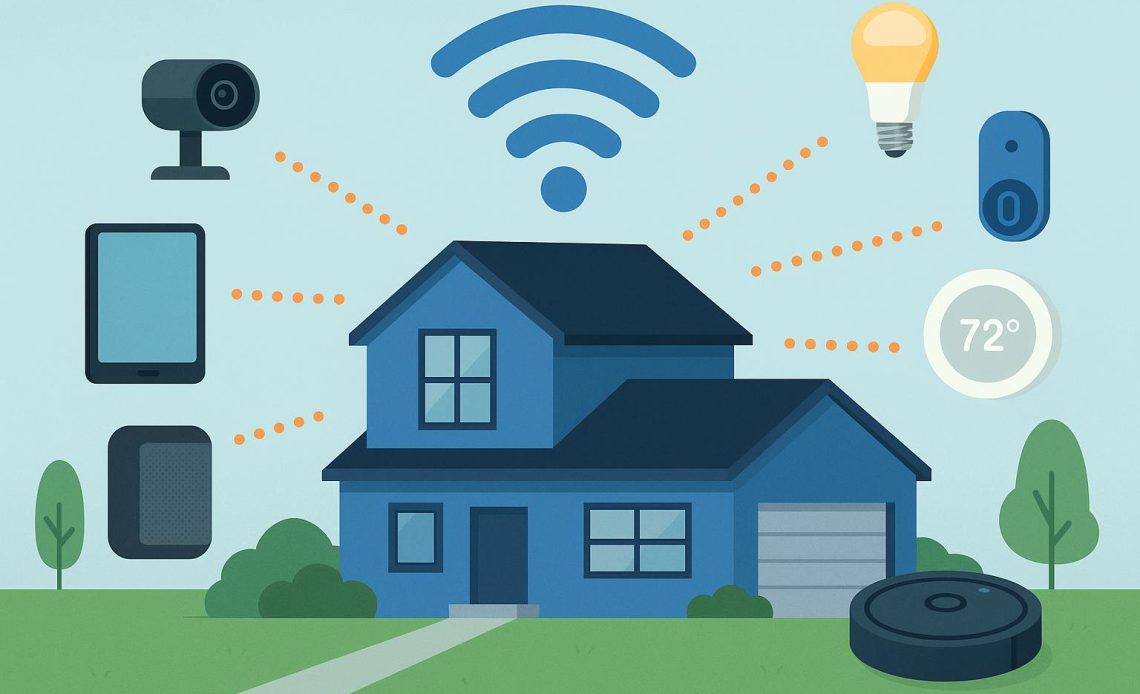
Your smart TV streams a 4K series while your security camera records the front gate. Your kids attend online classes upstairs, and your smart speaker plays music in the kitchen. All of this happens simultaneously on your broadband connection. But how many devices can it realistically support before performance drops? The answer is more specific than most people realise, and it depends on three factors: your router type, your bandwidth allocation, and how those devices actually use data.
The Reality of Device Limits: What Routers Can Actually Support
Most home routers can theoretically support up to 253 devices through IP addressing alone. In practice, that number means almost nothing. What matters is how your router handles simultaneous active connections, and that depends entirely on the hardware you own.
Standard Wi-Fi 5 routers perform reliably with about 20–30 connected devices. Push beyond that, and you will notice slowdowns during peak usage. Tri-band Wi-Fi 5 models can stretch to 50 devices, but only if those devices are distributed across multiple frequency bands.
Wi-Fi 6 routers are designed specifically for high-density environments. They can support more than 50 devices simultaneously while maintaining speed and stability. Technologies such as Orthogonal Frequency Division Multiple Access (OFDMA) and Multi-User Multiple Input Multiple Output (MU-MIMO) allow these routers to serve multiple devices at once rather than forcing each device to wait its turn.
The practical ceiling for most home setups sits between 20 and 50 active devices. Beyond that, even a modern router struggles with signal interference, bandwidth contention, and processing limits. This is regardless of how fast your broadband connection is.
How Smart Home Devices Impact Your Bandwidth
Not all smart devices consume bandwidth equally. Understanding the difference helps you plan capacity more accurately.
Low-bandwidth devices such as smart lights, plugs, and thermostats use less than 1 Mbps each. A smart speaker or voice assistant pulls about 1 Mbps when active and significantly less when idle. These devices rarely cause performance issues on their own.
High-bandwidth devices are where capacity becomes tight. A single security camera streams at 2–5 Mbps, depending on resolution. A 4K streaming session on your TV demands 25 Mbps. If you run three cameras and two 4K streams simultaneously, you are consuming over 60 Mbps before accounting for phones, tablets, and laptops.
Warning Signs Your Wi-Fi Is Overloaded
Recognising network overload early gives you time to optimise before frustration sets in. Watch for these symptoms:
- Speeds drop below your plan rating: If you pay for 300 Mbps but consistently see 50 Mbps, your router is struggling to manage traffic from multiple devices
- Streaming buffers frequently: Delays when loading videos or web pages, especially during evenings when the household is active
- Devices disconnect randomly: Phones, laptops, or smart home devices drop off the network and reconnect without explanation
- Lag in video calls or gaming: Noticeable delays or interruptions in activities that require stable connections
- Smart devices stop responding: Voice commands fail or smart lights do not switch on when triggered
- The router overheats or blinks rapidly: Physical signs that the router is working beyond its designed capacity
If two or more of these occur regularly, your network has reached its practical limit.
How to Optimise Your Home Network for Multiple Devices
Upgrading to a Wi-Fi 6 router solves most capacity issues immediately. Wi-Fi 6 can manage up to 8 simultaneous data paths, whereas Wi-Fi 7, expected to gain adoption through 2026, expands that to 16. This means your router can serve multiple devices simultaneously rather than cycling through them.
Router placement matters more than most people account for. Place your router in a central, elevated spot, ideally on a shelf rather than the floor. Signals weaken through walls and furniture, so a corner bedroom location will always underperform.
Separate your devices across frequency bands. Use the 5 GHz band for laptops, phones, and streaming devices. Reserve the 2.4 GHz band for smart home devices that do not need high speeds but benefit from longer range.
For bandwidth-heavy activities such as gaming or 4K streaming, use wired Ethernet connections wherever possible. A cable eliminates Wi-Fi interference entirely and frees up wireless bandwidth for other devices.
Enable Quality of Service (QoS) settings in your router admin panel. QoS lets you prioritise devices or activities. This ensures your work-from-home video call gets bandwidth before your smart fridge checks for updates.
Finally, match your plan speed to your household’s actual usage. A 100 Mbps connection cannot support 30 active devices without slowdowns. Upgrading your Wi-Fi recharge plan to a higher tier often costs less than replacing hardware.
Most modern homes sit comfortably in the 20–50 device range, and that number will only grow through 2026. Your network can handle that load if you pair the right router with adequate bandwidth and optimise placement and settings. Home Wi-Fi plans are built for multi-device households, with speeds designed to support streaming, gaming, work-from-home setups, and smart home ecosystems without compromise. Explore Airtel Wi-Fi plans to find the connection that matches your household’s device count and usage patterns.